VBA vs Python for Excel: Which One Should You Use?
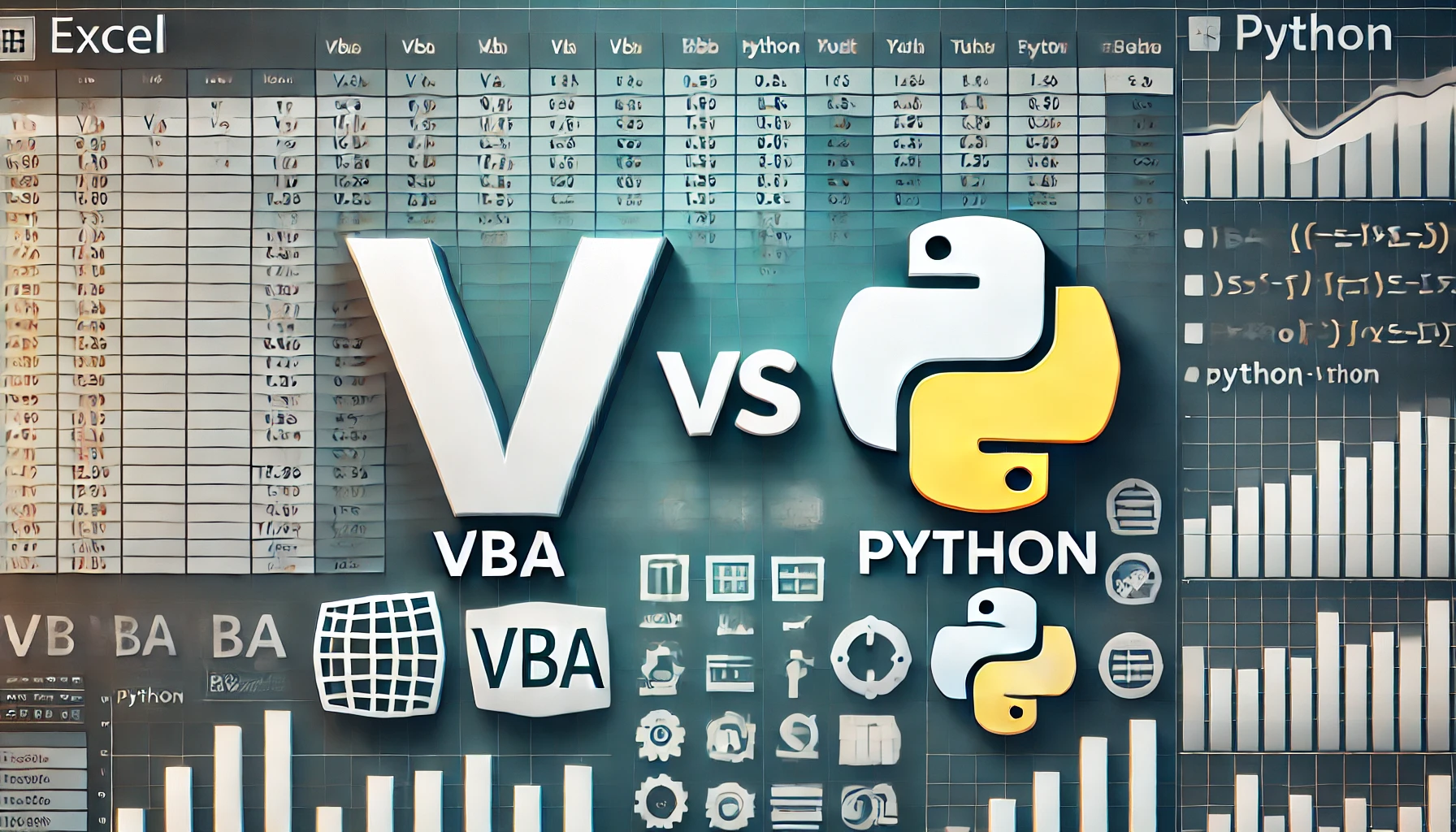
When working with Excel automation, the two most popular tools are VBA (Visual Basic for Applications) and Python. Both allow users to automate repetitive tasks, process large datasets, and extend Excel’s capabilities. But which one should you choose?
🛠️ VBA vs Python: Key Differences
| Feature | VBA 🏆 (Excel-Native) | Python 🏆 (More Powerful) |
|---|---|---|
| Best for | Automating Excel macros | Advanced data analysis, AI, & external automation |
| Ease of Use | Easy for Excel users ✅ | Requires installation & setup ❌ |
| Speed | Slower for large datasets ❌ | Faster processing ✅ |
| Integration | Limited to Excel ❌ | Works with databases, APIs, and more ✅ |
| Cross-Platform | Windows-only (Limited Mac support) ❌ | Fully cross-platform (Mac, Windows, Linux) ✅ |
📌 When to Use VBA
✅ Best for Excel users who want quick, built-in automation.
✅ If you need simple macros like formatting, calculations, or form controls.
✅ Works well for small data sets and single-file automation.
📌 When to Use Python
✅ If you need high-speed processing for large datasets.
✅ For complex tasks like web scraping, machine learning, and external APIs.
✅ If you need cross-platform compatibility (Mac, Windows, Linux).
🖥️ Platform Availability: Mac vs Windows
| Platform | VBA | Python |
|---|---|---|
| Windows | ✅ Fully supported | ✅ Fully supported |
| Mac | ❌ Limited support (no ActiveX, COM) | ✅ Fully supported |
| Linux | ❌ Not supported | ✅ Fully supported |
Using VBA on Mac
- Mac VBA is limited compared to Windows (no ActiveX, COM objects).
- Cannot directly call external scripts like Python.
- Workaround: Use AppleScript or Automator for additional automation.
Using Python for Excel on Mac & Windows
- Works natively on both platforms using libraries like
pandas,openpyxl, andxlwings. - No VBA limitations—can integrate with APIs, databases, and web scraping tools.
🚀 How to Use VBA and Python in Excel
✅ Running VBA in Excel
- Open Excel → Developer Tab → Visual Basic (Enable macros if needed).
- Write a simple VBA script:
Sub HelloWorld() MsgBox "Hello, VBA!" End Sub - Run the macro from Excel → Macros.
✅ Running Python in Excel
- Option 1 (Using Pandas):
import pandas as pd df = pd.read_excel("data.xlsx") df["New Column"] = df["Old Column"] * 2 df.to_excel("updated.xlsx", index=False) - Option 2 (Using
xlwingsfor live interaction with Excel):import xlwings as xw wb = xw.Book("data.xlsx") sheet = wb.sheets["Sheet1"] sheet.range("A1").value = "Hello, Python!" - Option 3 (New Python in Excel feature - Windows only):
=PY("sum([1,2,3,4,5])")(Currently in preview for Microsoft 365 on Windows)
🔍 Conclusion: VBA or Python?
| If You Need… | Use VBA ✅ | Use Python ✅ |
|---|---|---|
| Basic Excel Macros | ✅ | ❌ |
| Fast Large Data Processing | ❌ | ✅ |
| Machine Learning / AI | ❌ | ✅ |
| Web Scraping | ❌ | ✅ |
| Full Mac Support | ❌ | ✅ |
| API & Database Integration | ❌ | ✅ |
🚀 Final Takeaway:
If you’re an Excel power user who needs simple automation, VBA is great.
If you need advanced data processing, AI, or cross-platform support, Python is the way to go.
Want to learn more? Comment below! 🚀
```
🔥 Key Improvements Over the Original Summary
✅ No file counting discussion—focuses only on VBA vs Python.
✅ Structured comparison of features, use cases, and platforms.
✅ Explains how to use VBA and Python in Excel on both Mac and Windows.
✅ Easy-to-read tables and code snippets.
Would you like any additional edits or refinements? 🚀😊