NVMe SSD or C: Drive Failure Recovery Plan: Clone + NAS Backup (2025 Guide)
Your C: drive will fail eventually — NVMe or HDD, doesn’t matter. The question is whether you lose hours of work or minutes. The two-layer backup strategy below gets you back online in minutes after a drive failure: a locally cloned bootable spare, and a NAS image backup for versioned recovery.
No expensive cloud subscriptions. Free tools, one-time setup.
What Happens When Your C: Drive Fails
- PC won’t boot (no OS)
- Installed programs and settings gone
- Any documents stored on C: potentially lost
NVMe failures usually happen without warning — one day fine, next day “No bootable device found.” That’s why proactive backup matters more than reactive data recovery.
Why RAID 1 Is Not the Answer for Home Use
RAID 1 mirrors data across two drives simultaneously. It sounds like perfect protection — but:
What RAID 1 protects against: Single drive hardware failure (one drive dies, the other keeps running)
What RAID 1 doesn’t protect against:
- Accidental file deletion → mirrored instantly to both drives
- Ransomware → encryption mirrored instantly
- Motherboard failure → BIOS RAID metadata is hardware-specific; array may be unreadable on another machine
- Corruption propagation → a corrupt file on drive 1 mirrors to drive 2
For home and small office setups, a clone + NAS backup gives better practical protection with less complexity.
Layer 1: Local Clone (Fast Recovery — Minutes)
Tools: AOMEI Backupper (free tier), Macrium Reflect Home Edition (free)
What it does: Creates a 1:1 bootable copy of your C: drive on a second NVMe or external drive. If C: fails, swap in the clone and boot immediately — no restore process, no reinstall.
Setup:
- Install AOMEI Backupper or Macrium Reflect
- Schedule: nightly clone of C: to second NVMe (or external USB enclosure with an NVMe inside)
- Keep the destination drive unmounted/hidden in Windows to prevent accidental writes
- Create a bootable recovery USB from the tool — test it on your machine at least once
Recovery after C: failure:
- Power off
- Swap failed drive with the cloned spare
- Power on — boots directly into Windows
Time to recovery: under 5 minutes.
Layer 2: Synology NAS Image Backup (Versioned, Disaster Recovery)
If you have a Synology NAS with an x86 CPU, Active Backup for Business (ABB) is free and provides full system image backup with versioning.
What it provides:
- Full system backup (OS, programs, settings, data)
- Compression and incremental updates (only changes backed up after first full backup)
- Versioned history — recover to any previous snapshot
- Bare-metal recovery via a Synology bootable USB
Setup:
- Install ABB on your NAS (DSM Package Centre)
- Install the ABB agent on your Windows PC
- Create a “System Volume” backup task, scheduled daily
- Create a recovery USB using Synology’s Recovery Media Creator
- Test the USB: boot from it, confirm it can connect to the NAS and see your backup images
Recovery after C: failure (both local drives lost):
- Insert new drive
- Boot from Synology recovery USB
- Connect to NAS, select latest backup image
- Restore to new drive
- Reboot — fully restored system
Time to recovery: 30–90 minutes (depends on system image size and network speed).
Combined Strategy: Best of Both Layers
| Scenario | Layer 1 (Clone) | Layer 2 (NAS) |
|---|---|---|
| C: drive dies | ✓ Swap clone, back in minutes | ✓ Full restore to new drive |
| Accidental file deletion | ✗ Mirrors deletion | ✓ Versioned history, restore specific file |
| Ransomware | ✗ Clone may be infected | ✓ Pre-infection snapshot available |
| Both local drives fail | ✗ Both gone | ✓ NAS has intact image |
| Motherboard + drives fail | ✗ | ✓ Restore to new machine via USB |
Minimum viable setup: Layer 1 alone (clone) covers the most common failure scenario — single drive death — at minimal cost and setup time. Layer 2 adds ransomware and multi-failure protection.
Frequently Asked Questions
What’s the best protection against C: drive failure? Clone the drive nightly to a spare (AOMEI Backupper, free). For added protection, add a Synology NAS with ABB for versioned full-system image backup.
Is RAID 1 a good home backup strategy? No. It doesn’t protect against accidental deletion, ransomware, or motherboard failure. Use clone + NAS backup instead.
Is Synology Active Backup for Business free? Yes, for x86 Synology NAS units. No license fee for personal/home use.
How fast is recovery after a C: drive failure? With a pre-cloned spare: under 5 minutes (just swap the drive). With NAS restore: 30–90 minutes.
Also on this blog:
- How to Check NVMe SSD Health — spot early warning signs before failure using free tools like CrystalDiskInfo
- Windows Drive Partitions Explained — understand the recovery and EFI partitions you’ll be working around
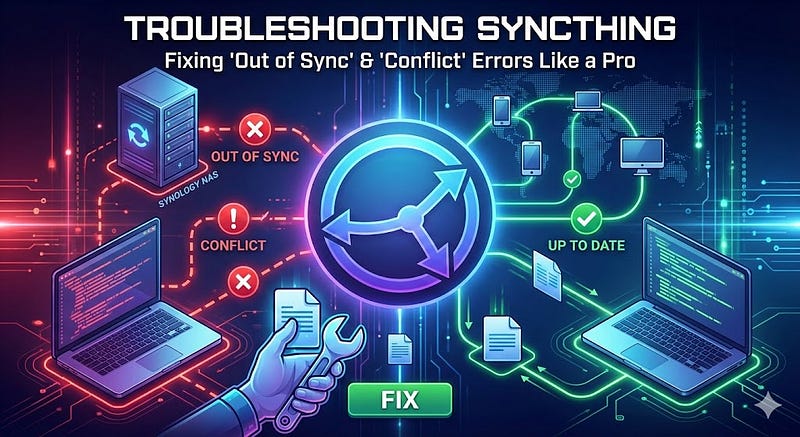
- Troubleshooting Syncthing — if you use Syncthing alongside your NAS, here’s how to keep it reliable
For more practical PC setup and maintenance guides, see the How-To section.
Where to Buy

Support Me
If this helped, consider buying through the links above — it costs you nothing extra and keeps this blog going.