2025-12-29_How-to-Share-Your-Google-Photos-With-Family-Without-Maxing-Out-Their-Storage-a7d56e93cb50
The ultimate guide to sharing thousands of memories without triggering those dreaded “Storage Full” notifications for your loved ones.
How to Share Your Google Photos With Family Without Maxing Out Their Storage
The ultimate guide to sharing thousands of memories without triggering those dreaded “Storage Full” notifications for your loved ones.
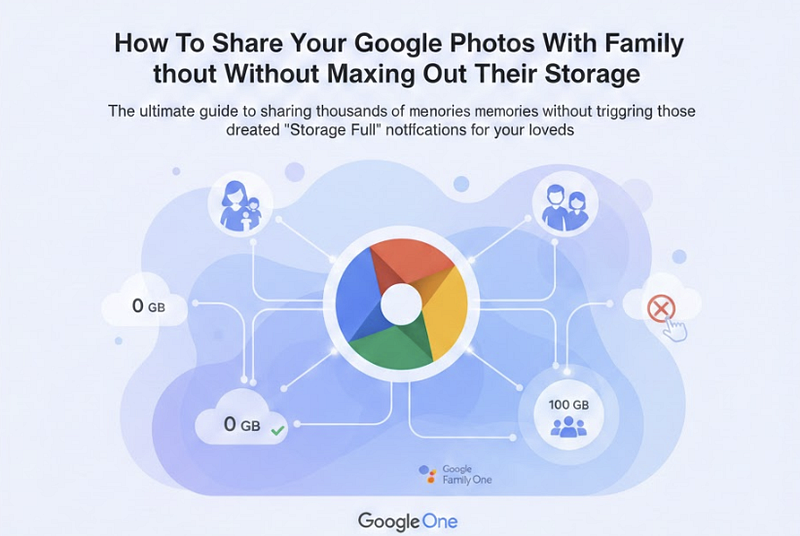
Created by Author using Gemini
Digital hoarding is a family affair. Whether it’s a thousand photos of the new baby or every angle of the family vacation, we want to share everything. However, with Google’s storage limits becoming tighter, a simple “Share” click can accidentally bury your spouse or parents under a mountain of data they didn’t ask for.
If you’ve ever hesitated to send an album because you didn’t want to eat up your partner’s 15GB of free space, this guide is for you. Here is how to share your library while keeping everyone’s storage meter in the green.
The Golden Rule of Google Photos Storage
Before diving into the methods, you must understand one thing: Ownership. In the world of Google, storage is billed to the person who “owns” the file. Usually, that is the person who uploaded it. As long as the photo stays in your “territory,” it doesn’t cost your family a single megabyte to look at it.
1. The Shared Album: The “View Only” Gallery
Shared albums are the most common way to distribute photos. When you create an album and invite your family, they are essentially looking at a window into your library.
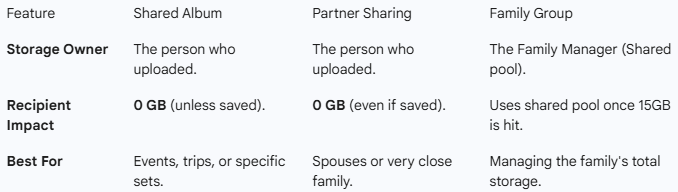
- The Storage Impact: Zero. Your family can scroll through thousands of high-res photos, and it won’t cost them a byte of storage.
- The Trap: Inside a shared album, there is a small cloud icon that says “Save to library.” If your family member clicks this, Google creates a copy of that photo in their account. At that moment, it starts counting against their storage.
- Pro-Tip: Tell your family to “Join” the album to see updates, but remind them they don’t need to “Save” the photos to view them later. They will always be available in the “Sharing” tab of their app.
2. Partner Sharing: The “Set It and Forget It” Solution
If you want to share photos with a spouse or a very close family member, Partner Sharing is the most powerful tool in the app. It allows you to automatically share your entire library (or just photos of specific people) with one other person.
- The Storage Loophole: This is the only method where the recipient can “Save” photos to their own library without it counting against their storage quota — provided you keep the original. * How it works: If your partner saves a photo you shared via Partner Sharing, it uses 0GB of their space. However, if you ever delete that photo from your account or stop sharing, the copy in their account will suddenly “wake up” and begin occupying their storage space.
3. Google One Family Groups: Sharing the Bucket
If your family is constantly hitting their limits regardless of sharing, it might be time to stop fighting the 15GB cap. By starting a Google One subscription, you can create a “Family Group.”
- The Benefit: You can share your paid storage (100GB, 2TB, etc.) with up to five other people.
- Privacy First: This doesn’t mean they see your photos. It just means everyone draws from one large pool of data. It’s the digital equivalent of a shared data plan for your phone.
Comparison of Sharing Methods
Created by Author using Gemini
Final Advice
To keep your own storage lean while sharing, make sure your upload settings are set to “Storage Saver” rather than “Original Quality.” This compresses the files slightly — usually unnoticeable to the naked eye — allowing you to fit thousands more memories into your account before you ever have to worry about the bill.