2025-12-20_Troubleshooting-Syncthing–Fixing–Out-of-Sync–and–Conflict–Errors-Like-a-Pro-04a114e501ca
The Ultimate Guide to Resolving Metadata Drift and Sync Deadlocks on Your Cross-Platform Home Lab
Troubleshooting Syncthing: Fixing “Out of Sync” and “Conflict” Errors Like a Pro
The Ultimate Guide to Resolving Metadata Drift and Sync Deadlocks on Your Cross-Platform Home Lab
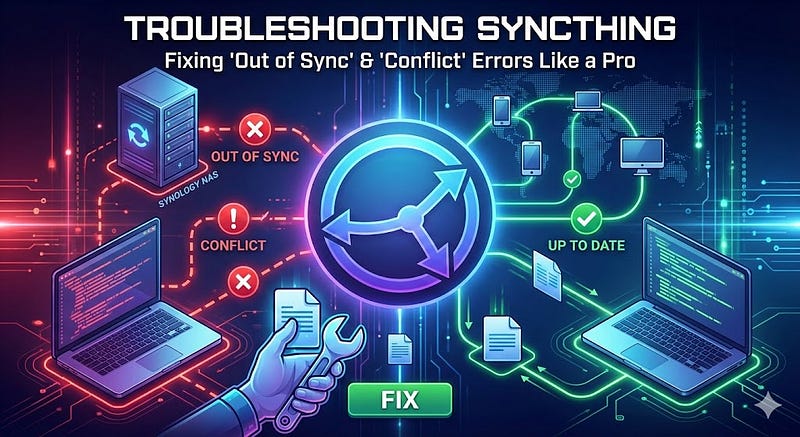
Created by Author using Gemini
Syncthing has earned its reputation as the gold standard for decentralized file synchronization. Unlike cloud providers that charge monthly fees or compromise your privacy, Syncthing is open-source, peer-to-peer, and incredibly versatile. Whether you are syncing code between a Windows workstation and a Synology NAS or moving photos from an Android phone to a Mac, it works everywhere.
The “killer feature” for many is its ability to sync outside of your home network without a VPN. By using globally distributed relay servers and discovery servers, your devices can find each other and maintain a secure, encrypted tunnel whether you’re at a coffee shop or on a different continent.
However, even the best tools hit a snag. If you’ve encountered a persistent “Out of Sync” status or a frustrating “Conflict” error — especially on a Synology NAS — this guide will help you fix them without nuking your entire database.
Scenario 1: The “Conflict” Ghost
The Symptom: Your device shows a red “Conflict” status, but your source device (where the files originated) looks perfectly green and healthy.
This usually happens when a file is modified on two devices simultaneously, or when a system process (like an antivirus or a NAS indexer) touches a file on the receiving end.
The Fix:
- Identify the Culprit: Look inside the folder for files containing
.sync-conflict-. Syncthing creates these to prevent data loss. - Manual Resolution: Decide which version is the “truth.” Delete the conflict file. Once deleted, Syncthing will rescan and the error should vanish.
- The “Double Revert” (Synology Special): If your NAS folder is set to Receive Only, you’ll see a “Revert Local Changes” button. Due to a common GUI quirk, clicking it once might not clear the database flag. Click it twice. The first click triggers the revert; the second often forces the UI to refresh the metadata state.
Scenario 2: “Out of Sync” (But files are still moving)
The Symptom: Both sides say “Out of Sync,” yet you can see new files appearing in the folder. This is a classic case of Index Database Drift.
Your devices are successfully sharing files, but they can’t agree on the “Global State” (the master list of what should be there). If you have multiple folders and only one is broken, do not reset your entire Syncthing database — that’s overkill.
The Surgical Fix: Remove and Re-Add
This is the most efficient way to reset the database for one specific folder without affecting your other working syncs.
- Note the Folder ID: Click on the problematic folder in the Syncthing UI and copy the Folder ID (e.g.,
my-shared-docs-123). - Remove the Folder: Click Edit > Remove. Don’t worry — this only removes the folder from Syncthing’s “memory”; it does not delete your actual files on the disk.
- The Cooling Period: Wait about 30 seconds for the internal database to clear the old entries.
- Re-Add the Folder: Click Add Folder.
- Label: Use whatever name you like.
- Folder ID: Paste the exact same ID you copied in Step 1.
- Path: Point it to the exact same directory on your NAS or PC.
5. Re-scan: Syncthing will now treat this as a fresh start. It will re-index the files, realize they match the other device, and the “Out of Sync” status will turn into a satisfied “Up to Date.”
Developer Tip: Finding the “Hidden” Culprits
Syncthing relies on hidden files and folders to manage its magic. If you are troubleshooting and can’t find where the configurations or conflict logs are, you need to “unhide” the system files.
1. The .stfolder and .stignore
Every Syncthing directory contains a hidden .stfolder. If this is missing or deleted, the folder will stop syncing as a safety measure to prevent data loss.
- On Synology (DSM File Station): Click on Settings in File Station and check “Show hidden files and folders.”
- On Windows: In File Explorer, go to the View tab and check “Hidden items.”
- On macOS/Linux: Use
ls -ain the terminal to see files starting with a dot.2. The
.stversionsFolder
If you have “File Versioning” enabled, your old files aren’t deleted; they are moved to a hidden .stversions folder within your sync directory. If your NAS is running out of space, this is the first place to check!
Pro-Tip: The Synology “@eaDir” Prevention
If you are running Syncthing on a Synology NAS, the system’s “Universal Search” or “Synology Photos” often creates hidden metadata folders called @eaDir. These are the #1 cause of sync errors because they change constantly behind Syncthing’s back.
To prevent future headaches, go to your Ignore Patterns and paste this:
(?d)@eaDir
(?d).DS_Store
(?d)#recycle
The (?d) prefix is crucial—it tells Syncthing that if it needs to delete a directory, it’s allowed to delete these hidden system files to get the job done.
Conclusion
Syncthing is powerful precisely because it is transparent. While “Out of Sync” errors can look intimidating, they are usually just a sign that the metadata index needs a nudge. By using the Remove/Re-add method and keeping an eye on hidden system files, you can keep your sync engine humming without the downtime of a full database rebuild.