2025-05-11_The-Best-Way-to-Improve-Remote-Desktop-Experience-from-a-Tablet–Use-PowerToys-to-Map-Two-Essential–7df0f9b94a17
Remote desktop access from a tablet can be a game changer for mobile professionals, digital nomads, or anyone who wants the flexibility to…
The Best Way to Improve Remote Desktop Experience from a Tablet: Use PowerToys to Map Two Essential Keys
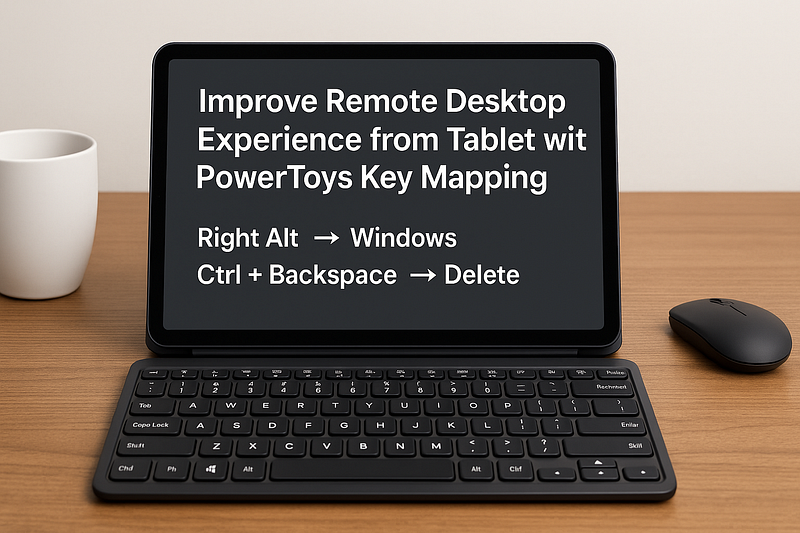
Remote desktop access from a tablet can be a game changer for mobile professionals, digital nomads, or anyone who wants the flexibility to work away from their main PC setup. But once connected, many users find themselves limited by the lack of essential keys — especially when using a Bluetooth keyboard.
Two of the most commonly missed functions are:
- The Windows key, often absent or nonfunctional on mobile keyboards.
- The Delete key, crucial for text editing and file management, but typically buried in layers of shortcuts.
Fortunately, there’s a clean and simple fix: Microsoft PowerToys. With this utility, you can remap underused keys to restore critical desktop functionality. Here’s how to remap:
- Right Alt → Windows key
- Ctrl + Backspace → Delete
Let’s break down why these mappings matter and how to implement them step-by-step.
Why Remap These Keys?
1. Missing Windows Key on Mobile Keyboards
Tablets paired with compact Bluetooth keyboards often lack a dedicated Windows key, which limits shortcuts like:
- Win + E (File Explorer)
- Win + D (Show Desktop)
- Win + R (Run Command)
By remapping Right Alt (rarely used) to act as Windows, you instantly regain access to Windows-native shortcuts.
2. No Delete Key
Many mobile keyboards drop the Delete key to save space, leaving you with only Backspace. That’s frustrating when:
- Editing code
- Managing files
- Using terminal sessions
Remapping Ctrl + Backspace (a rarely useful combo) to trigger Delete gives you back this essential function without sacrificing anything.
Step-by-Step Guide to Remap Keys with PowerToys
Step 1: Install PowerToys
- Visit the official PowerToys GitHub page.
- Download the latest
.exeinstaller. - Install and launch the PowerToys app.
Step 2: Open Keyboard Manager
- In PowerToys Settings, navigate to Keyboard Manager.
- Enable “Keyboard Manager” if it’s not already active.
Step 3: Remap Right Alt to Windows Key
- Click “Remap a key”.
- In the “Physical Key” column, select Alt (Right).
- In the “Mapped To” column, select Win (Left).
- Click OK, then confirm the remapping.
Step 4: Remap Ctrl + Backspace to Delete
- Go back to the Keyboard Manager section.
- This time, click “Remap a shortcut”.
- In the “Shortcut” column, press Ctrl + Backspace.
- In the “Mapped To” column, select Delete.
- Click OK to save.
Final Tip: Make Sure PowerToys Runs on Startup
To ensure your remappings are always available when using remote desktop:
- In PowerToys settings, enable “Run at startup”.
- You might also need to allow PowerToys to run as administrator for system-wide changes.
Result: A Remote Desktop Experience That Just Works
With these two remappings, you’ll instantly:
- Regain efficient Windows navigation shortcuts
- Edit text and manage files without frustration
- Work from your tablet as if you’re on a full PC
This fix is especially helpful when using Moonlight + Sunshine, Chrome Remote Desktop, or Microsoft Remote Desktop, where key pass-through can be inconsistent.