2025-04-05_Cost-Effective-Gaming-Upgrades–Leveraging-LSFG-for-Better-Performance-2cea5156404e
Do you know Lossless Scaling Frame Generation (LSFG)?
Cost-Effective Gaming Upgrades: Leveraging LSFG for Better Performance
Do you know Lossless Scaling Frame Generation (LSFG)?
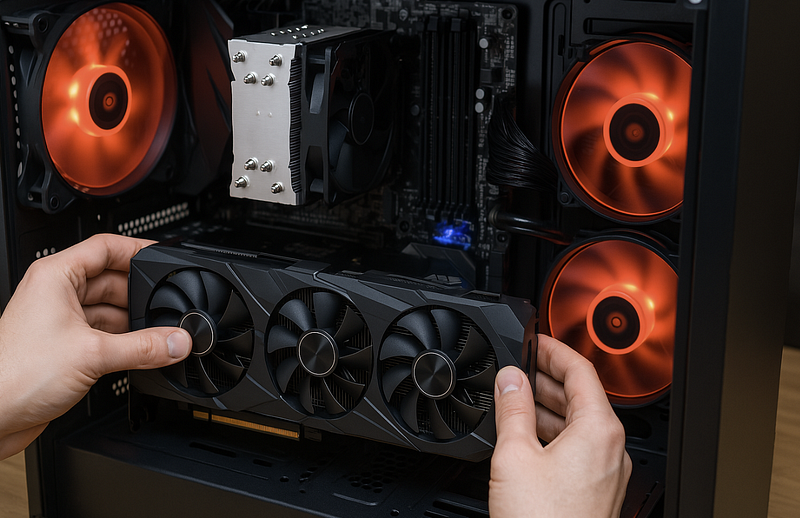
Integrating a second GPU into your PC or gaming laptop can enhance performance, particularly when leveraging technologies like Lossless Scaling Frame Generation (LSFG). LSFG is a universal frame generation tool designed to work with most games, utilizing machine learning to operate across a wide range of GPUs, including integrated graphics.
Pros of Adding a Second GPU with LSFG:
- Improved Frame Rates: Offloading LSFG tasks to a secondary GPU can lead to smoother gameplay. For instance, running LSFG on a secondary GPU, such as a GTX 1080, while the primary GPU handles the main rendering tasks, has been shown to enhance performance in games like Cyberpunk 2077.
- Reduced Primary GPU Load: Delegating frame generation to a secondary GPU alleviates the computational burden on the primary GPU, potentially leading to lower temperatures and extended hardware longevity.
- Cost-Effective Performance Boost: Utilizing an existing or less powerful secondary GPU can be a budget-friendly method to enhance performance without investing in a new high-end GPU.
Performance Expectation for Pairing a GTX1080 with RTX4060
Integrating a secondary GPU, such as the GTX 1080, alongside an RTX 4060 to utilize Lossless Scaling Frame Generation (LSFG) can potentially enhance gaming performance by offloading frame generation tasks from the primary GPU. However, it’s important to set realistic expectations regarding the outcomes at different resolutions.
Baseline Performance Comparison:
Understanding the individual capabilities of the GTX 1080 and RTX 4060 provides context for their combined performance:
- 1080p Gaming: The RTX 4060 delivers approximately 5.5% higher frame rates compared to the GTX 1080.
- 4K Gaming: The GTX 1080 outperforms the RTX 4060 by about 55.3% in average frame rates.
Implementing LSFG with a Dual-GPU Setup:
LSFG is designed to generate additional frames, aiming to provide smoother visuals. By assigning LSFG tasks to a secondary GPU like the GTX 1080, the primary RTX 4060 can focus on rendering, potentially improving overall performance.
Expected Outcomes:
At 1080p Resolution:
- Potential Benefits: Offloading LSFG tasks to the GTX 1080 may lead to modest improvements in frame rates and smoother gameplay, especially in titles that are less demanding.
- Considerations: Given that the RTX 4060 already handles 1080p gaming efficiently, the additional benefits from LSFG might be limited.
At 4K Resolution:
- Potential Benefits: The RTX 4060’s capabilities at 4K are more taxed, so utilizing the GTX 1080 for LSFG could provide more noticeable improvements in frame rates and visual smoothness.
- Considerations: The effectiveness of LSFG at 4K depends on the game’s optimization and the inherent limitations of the GTX 1080 in handling high-resolution tasks.
Important Considerations:
- Compatibility: Not all games support LSFG, and performance gains can vary significantly between titles. DSOGaming
- System Overhead: Introducing a second GPU increases power consumption and heat output, necessitating adequate cooling and power supply considerations.
- Diminishing Returns: In some scenarios, the performance boost from adding a second GPU for LSFG may not justify the additional complexity and resource usage.
PC — How to Add a Second GPU and Configure LSFG:
- Install the Secondary GPU: Ensure your system has the necessary slots and power connectors. Install the secondary GPU and update drivers as needed.
2. Install Lossless Scaling: Purchase and install the Lossless Scaling application from Steam.
3. Configure LSFG:
- Open Lossless Scaling and select LSFG as the scaling type.
- Set the frame generation multiplier (e.g., X2 for doubling the frame rate).
- Choose the capture API (e.g., WGC for lower latency on Windows 11).
- Assign the secondary GPU as the preferred GPU for LSFG tasks.
4. Optimize Game Settings:
- Set the game’s display mode to borderless windowed.
- Cap the in-game frame rate to half of your monitor’s refresh rate to ensure consistent performance.
5. Launch and Activate LSFG:
- Start your game and use the designated shortcut key to activate LSFG.
- Monitor performance and adjust settings as necessary to achieve the desired balance between visual quality and frame rate.
Gaming Laptop — How to Add a Second GPU?
1. Utilizing an External GPU (eGPU):
An eGPU can serve as a secondary GPU to offload LSFG tasks. Here’s how to set it up:
Connect the eGPU: Attach the eGPU to your laptop via a high-bandwidth interface like Thunderbolt 3 or 4. Ensure that your laptop supports eGPU connections.
Install Necessary Drivers: Download and install the latest drivers for the eGPU to ensure compatibility and optimal performance.
Configure Display Settings:
- Connect your external monitor directly to the eGPU. This setup can reduce latency and improve performance.
- In your operating system’s display settings, set the external monitor as the primary display.
Assign LSFG to the eGPU:
- Open the Lossless Scaling application.
- Navigate to the settings and select the eGPU as the “Preferred GPU” for LSFG tasks.
It’s important to note that the performance gains depend on the eGPU’s capabilities and the bandwidth of the connection. Some users have reported limitations due to bandwidth constraints, especially when using less powerful GPUs. Reddit
2. Leveraging the Integrated GPU (iGPU):
If your laptop has an iGPU, you can offload LSFG tasks to it, allowing the dedicated GPU (dGPU) to focus on rendering. Here’s how to set it up:
Configure Graphics Settings:
- In Windows, go to “Graphics Settings.”
- Under “Choose an app to set preference,” add the Lossless Scaling application.
- Set its graphics preference to “Power saving,” which assigns it to the iGPU.
Assign LSFG to the iGPU:
- Open the Lossless Scaling application.
- In the settings, select the iGPU as the “Preferred GPU” for LSFG tasks.
This method can effectively reduce the load on the dGPU, leading to improved performance in certain scenarios. However, the effectiveness depends on the iGPU’s capabilities and may vary between different laptop models.
BASELINE — Lossless Scaling Frame Generation (LSFG)
LSFG is primarily designed to enhance gaming experiences by generating additional frames for smoother visuals. Its applicability is mainly within the gaming domain and does not extend to video editing, LLMs, or Stable Diffusion tasks.
Incorporating a second GPU can offer performance benefits in specific scenarios, particularly where software is optimized for multi-GPU utilization. However, these advantages are highly dependent on the application’s design and the nature of the tasks. It’s crucial to assess whether the software you are using can effectively leverage multiple GPUs before investing in additional hardware.