2025-04-04_-Ensuring-Seamless-Photo-and-Video-Backup-After-Cloning-Your-Phone–Key-Considerations-a7b47eb03294
Optimizing Photo and Video Backup After Cloning Your Phone
Ensuring Seamless Photo and Video Backup After Cloning Your Phone: Key Considerations
Optimizing Photo and Video Backup After Cloning Your Phone
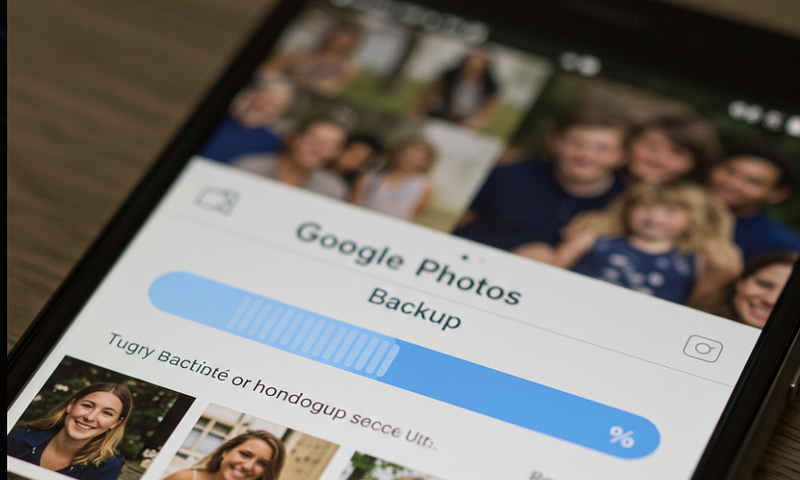
Transitioning to a new smartphone often involves cloning the contents of your old device to the new one. While this ensures a seamless transfer of data, it raises important considerations regarding the backup of photos and videos using applications like Google Photos and Synology Photos. A common dilemma is choosing between “Back Up All” and “Back Up New Photos Only” options. To safeguard your media and optimize storage, it’s generally advisable to select the “Back Up All” option, as these applications are designed to detect and prevent duplicate uploads.
Understanding Duplicate Detection Mechanisms
Both Google Photos and Synology Photos incorporate mechanisms to identify and manage duplicate files during the backup process:
- Google Photos: Utilizes hash codes to detect exact duplicates, preventing them from being uploaded multiple times. However, if a photo’s metadata changes — such as alterations in timestamps or edits — the file may be perceived as new, potentially leading to duplicate uploads. Google Sites
- Synology Photos: Compares new files with existing ones in designated storage spaces to avoid duplication. Similar to Google Photos, changes in metadata can affect duplicate detection, resulting in multiple versions of the same file. Synology Knowledge Center
Challenges with “Back Up New Photos Only”
Opting for the “Back Up New Photos Only” setting may seem efficient but can inadvertently lead to issues:
- Missed Backups: If certain photos or videos were not previously backed up due to sync errors or selective folder backups, they might be overlooked with this setting, leading to potential data loss.
- Metadata Alterations: Cloning processes can modify file metadata. Consequently, backup applications might not recognize these files as previously backed up, resulting in either missed backups or duplicate uploads.
Best Practices for Seamless Backup when Changing to New Phone
To ensure a comprehensive and efficient backup process after cloning your phone:
- Select “Back Up All”: This choice ensures that all media files are considered for backup. Given the duplicate detection features of both applications, exact duplicates will be identified and skipped, optimizing storage usage.
- Monitor Storage Limits: Regularly check your storage quotas on Google Photos or Synology NAS to prevent issues related to exceeded capacities.
- Regular Backup Reviews: Periodically review your backup settings and the contents of your backup to confirm that all desired media files are securely stored.
- Manual Verification: After the initial backup post-cloning, manually verify that recent photos and videos are present in the backup to ensure no files were missed.
By proactively managing your backup settings and understanding the functionalities of your chosen application, you can ensure that your cherished memories are securely preserved .
Important App Settings You Might Miss
it’s crucial to ensure that backup applications like Google Photos and Synology Photos are allowed to operate in the background without battery restrictions. Restrictive battery settings can hinder these apps from performing automatic backups, leading to potential data loss. To prevent this:
Disable Battery Optimization:
For Google Photos:
- Navigate to your device’s Settings.
- Go to Apps & notifications > See all apps > Photos.
- Tap on Advanced > Battery > Background restriction and select Don’t restrict.
For Synology Photos:
- Open your device’s Settings.
- Find and select Synology Photos.
- Adjust the Battery settings to permit background activity.
Allow Background Data Usage:
- Ensure that both apps have permission to use data in the background, facilitating uninterrupted uploads.
By configuring these settings, you can maintain consistent and automatic backups, safeguarding your photos and videos during the transition to a new device.
Best Practices for WhatsApp Chat Media Backup
When managing backups, especially for individuals who frequently capture photos or share media in chat groups like WhatsApp, it’s essential to be cautious with folder selection to prevent redundancy and optimize storage. Here are some recommendations:
1. Selective Backup of WhatsApp Media:
- Avoid Backing Up the Entire WhatsApp Folder: WhatsApp stores all received and sent media in its dedicated folder. Backing up this entire folder can lead to unnecessary duplication, especially if many files are already saved elsewhere or are non-essential.
- Manually Curate Important Media: For photos or videos you’ve taken or those significant to you, consider moving them to your device’s primary camera folder or another designated directory. This ensures that only pertinent media is included in your backup, reducing clutter and saving space.
2. Organizing Media Files:
- Use File Manager Applications: Utilize your device’s file manager to navigate to the WhatsApp media folders (typically found in
Internal Storage/WhatsApp/Media/). From there, you can move selected photos and videos to your camera folder or another preferred location. - Regular Maintenance: Periodically review and organize your media files to ensure that only relevant content is backed up. This practice helps in maintaining an organized library and efficient use of storage resources.
3. Understanding Backup Behaviors:
- Google Photos and Synology Photos: These platforms may not automatically detect duplicates if the same media exists in multiple folders. By consolidating your important media into a single folder before backup, you can minimize the risk of duplicate uploads and ensure a more streamlined backup process.
- WhatsApp’s Native Backup: WhatsApp offers its own backup feature that saves chats and media to cloud services like Google Drive or iCloud. However, this backup is primarily for restoring WhatsApp data and may not provide the same accessibility or organization as dedicated photo backup services.
By implementing these practices, you can ensure a more efficient and organized backup process, safeguarding your valuable media without unnecessary duplication or storage consumption.