2025-04-03_Why-Your-Google-Drive-is-Always-Full–Understanding-Hidden-Storage-Usage—How-to-Free-Up-Space-74b08d4452b5
Why Google Drive is One of the Best Cloud Storage Services
Why Your Google Drive is Always Full: Understanding Hidden Storage Usage & How to Free Up Space
Why Google Drive is One of the Best Cloud Storage Services
In today’s digital world, cloud storage has become an essential tool for backing up and syncing files across devices. Among the many cloud storage services available, Google Drive stands out as one of the best options due to its seamless backup capabilities, effortless synchronization with PCs and NAS devices, and generous free storage. Let’s explore why Google Drive is a top choice for individuals and businesses alike.
1. Seamless Backup Success
Google Drive offers an incredibly reliable backup system that ensures your files, photos, emails, and app data are automatically stored in the cloud. Whether you’re using an Android smartphone, a PC, or a tablet, Google Drive’s backup feature works in the background, preventing data loss.
For Android users, Google Drive backs up contacts, app data, call history, text messages, and even WhatsApp chats (if enabled). For Google Photos users, selecting Storage Saver mode allows unlimited compressed photo storage without consuming extra space. This automatic syncing and backup system ensures that even if you lose or switch devices, your data is always safe.
2. Effortless PC and NAS Synchronization
One of Google Drive’s strongest features is its ability to sync files seamlessly across multiple devices. With the Google Drive for Desktop app, users can set up continuous syncing between their cloud storage and a PC or external hard drive. This means any changes made to files on one device will be instantly reflected on all linked devices.
Additionally, Google Drive can be integrated with NAS (Network-Attached Storage) devices, such as Synology NAS, enabling businesses and home users to back up and sync files without relying solely on their local storage. This is especially useful for those who need redundant backups for important work documents, personal photos, and videos.
3. Cross-Platform Accessibility & Google Ecosystem Integration
Google Drive is deeply integrated into the Google ecosystem, making it incredibly easy to access files on:
- Android and iOS devices via the Google Drive app
- PC and Mac through the Google Drive desktop app
- Web browsers on any device
Moreover, Drive integrates effortlessly with Google Docs, Sheets, and Slides, allowing for real-time collaboration. Users can edit documents, store project files, and work remotely without worrying about transferring files manually.
How Quickly Can Google Drive’s 15GB Fill Up?
While Google Drive offers 15GB of free storage, it can fill up faster than most users expect, especially if multiple services are using the same space.
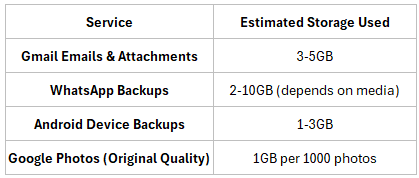
🔹 If you use all these services, 15GB can fill up within 1–2 years.
🔹 Biggest space-eaters: WhatsApp media backups and Google Photos in original quality.
Why Managing Google Drive Storage is Not Always Direct
Even when users see an “empty” Google Drive, storage space may not be fully cleared. This is because Google Drive storage is shared across multiple “partner” apps, including:
- Google Photos (storing original-quality photos and videos)
- Gmail (emails with large attachments take up space)
- WhatsApp Google Drive backups (media-heavy backups consume significant storage)
If users do not actively check and manage storage from these partner apps, Google Drive may still appear full.
How to Free Up Google Drive Space
a) Compress Google Photos and Videos
To reduce space usage by Google Photos:
- Go to Google Photos Storage Settings.
- Select Storage Saver to compress all existing photos and videos (this may not work for some videos).
- Click Recover Storage to apply compression to previously uploaded media.
b) Find WhatsApp Chats That Are Media-Heavy and Delete Media
- Open WhatsApp and go to Settings > Storage and Data > Manage Storage.
- Identify chats with large media files.
- Open a chat, tap on Manage, and select Delete All Media (while keeping the text messages).
c) Find and Delete Large Gmail Emails
- Go to Gmail.
- In the search bar, type larger:10MB to find emails larger than 10MB.
- Select and delete unnecessary emails with large attachments.
- Empty the Trash folder to permanently free up space.
d) Reduce Android Device Backup Size
- Go to Google One Storage (https://one.google.com/storage).
- Under Backups, review Android device backups.
- Disable unnecessary backups (e.g., app data, call history) or delete old backups.
Conclusion: Why Google Drive Stands Out
Google Drive remains one of the best cloud storage solutions because of its seamless backup success, easy synchronization with PCs and NAS devices, and integration with Google’s ecosystem. However, users should be mindful of their storage consumption to ensure they don’t run out of space too quickly.
For those needing more storage, Google One plans offer affordable upgrades starting from 100GB to multiple terabytes, making it a scalable option for personal and business use.
If you’re looking for a reliable, user-friendly, and feature-rich cloud storage solution, Google Drive is undoubtedly one of the best choices available today