2025-04-03_How-to-Download-All-Google-Photos-to-Your-Local-Computer-1cbcc63aacd0
Google Photos is a great cloud storage service, but having a local backup of your photos and videos is always a good idea. Whether you’re…
How to Download All Google Photos to Your Local Computer
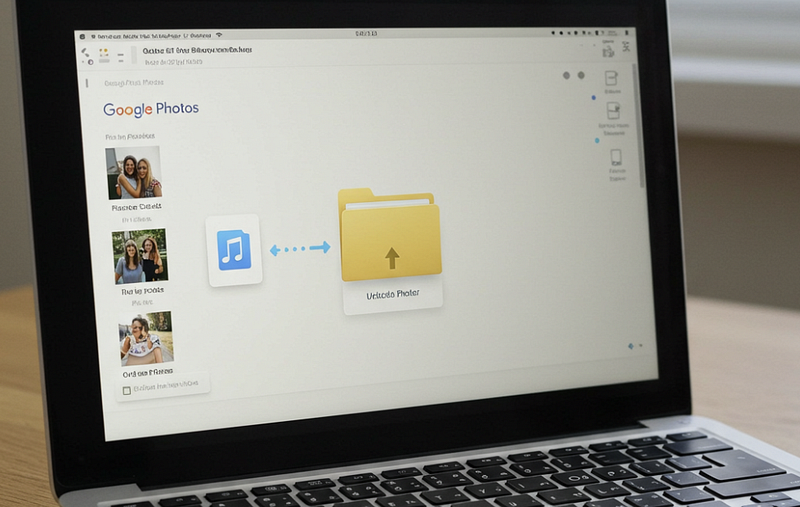
Google Photos is a great cloud storage service, but having a local backup of your photos and videos is always a good idea. Whether you’re moving to another service or just want an offline copy, here’s a step-by-step guide on how to download all your Google Photos to your local computer.
Method 1: Using Google Takeout
Google Takeout is the official tool for exporting all your Google Photos.
Step 1: Access Google Takeout
- Go to Google Takeout.
- Sign in with your Google account if you haven’t already.
Step 2: Select Google Photos
- Click “Deselect all” to avoid downloading unnecessary data.
- Scroll down and check Google Photos.
- Click “All photo albums included” to choose specific albums or leave it selected to download everything.
Step 3: Choose File Format and Delivery Method
- Select .zip or .tgz as the file format.
- Choose the archive size (e.g., 2GB, 10GB, 50GB). If your photos exceed this limit, multiple files will be created.
- Choose a delivery method:
- Email with a download link
- Add to Google Drive, Dropbox, OneDrive, or Box
Step 4: Request the Download
- Click “Create Export”.
- Google will process your request (this may take minutes to days depending on the size of your library).
- Once ready, you’ll receive an email with a link to download your files.
Step 5: Download and Extract Files
- Open the email from Google and click “Download your files”.
- Extract the
.zipor.tgzfiles to access your photos and videos.
Method 2: Downloading Manually from Google Photos
If you only need to download specific photos or albums, you can do it manually.
Step 1: Open Google Photos
- Go to Google Photos.
- Sign in to your Google account.
Step 2: Select and Download Photos
- Click on individual photos or use Shift + Click to select multiple images.
- Click the three-dot menu (⋮) in the top-right corner.
- Select “Download” — This will download the photos as a
.zipfile.Step 3: Download Entire Albums
- Open an album.
- Click the three-dot menu (⋮) and select “Download all”.
- The album will be compressed into a
.zipfile for download.
Method 3: Using Google Takeout with a Direct Sync
If you frequently back up your photos, you can use Google Takeout with a cloud service:
- Follow Steps 1–3 in Method 1.
- Select “Add to Google Drive” (or another cloud service).
- Set up a local sync using Google Drive for Desktop.
- Your photos will automatically sync to a folder on your computer.
Final Tips
- Downloaded image retained Photo Taken info: You can use any photo to manage and view it on the same date or in the same order.
- Use an external drive: If your collection is large, store backups on an external hard drive.
- Verify downloaded files: Open some images to ensure they downloaded correctly.
By following these steps, you can successfully download and safeguard your Google Photos on your local computer. Happy backing up!