2025-04-02_Passkey-Methods—Authenticators–Summary—Cross-Platform-Compatibility-2d5588e1d6d3
Passkeys are a passwordless authentication method using public-key cryptography. They replace traditional passwords with biometric…
Understanding Authentication Methods: Navigating Passwords, Passkeys, and Beyond
Passkey Methods & Authenticators: Summary & Cross-Platform Compatibility
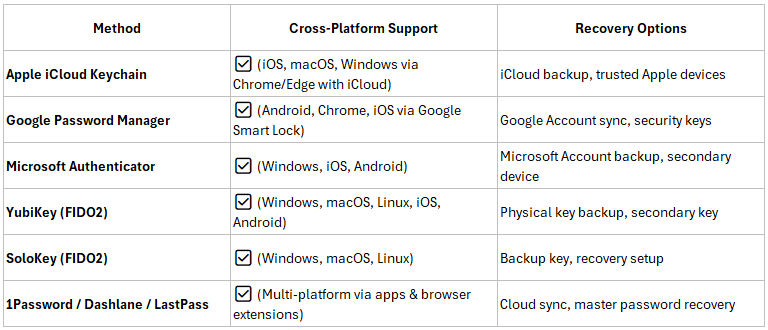
Passkeys are a passwordless authentication method using public-key cryptography. They replace traditional passwords with biometric authentication (Face ID, fingerprint) or PINs and are designed to be phishing-resistant. Passkeys work with FIDO2/WebAuthn standards and sync across devices using cloud-based or hardware-based methods.
Passkey Methods & Their Cross-Platform Support
What Happens If You Lose Your Main Smartphone?
- Cloud-Synced Passkeys (Apple, Google, Microsoft, 1Password, etc.)
- Can be restored on a new device using account login and biometric authentication.
If multi-factor authentication (MFA) is enabled, a secondary device may be needed.
2. Hardware Keys (YubiKey, SoloKey, etc.)
- If lost, a backup key (recommended) is needed.
- If no backup exists, account recovery options (email, backup codes) may be necessary.
- Non-Synced Authenticators (Standalone FIDO2 keys, Local-only storage)
- If lost and no backup exists, access is permanently lost unless a recovery method (email, backup key, or admin override) is set up.
Why Passkeys Are Still an Improvement
- Phishing Resistance — Passkeys eliminate the risk of stolen passwords through phishing, since there’s no password to enter.
- User Experience — Unlocking with Face ID or fingerprint is faster and more convenient than typing complex passwords.
- Multi-Device Syncing — If set up correctly, passkeys sync across devices, meaning you won’t need to manually enter credentials.
- Better Security — Even though account-based recovery still exists, passkeys reduce the attack surface by removing password leaks from database breaches.
DO NOT rely on passkey on single device only
- Mandatory multi-device enrollment — Require at least two passkey options (phone + hardware key or 2FA).
- Independent recovery method — Use an offline recovery key (like a printed backup passkey) instead of falling back to email/password resets.
How GOOGLE Sign-in Methods Are Related or Independent
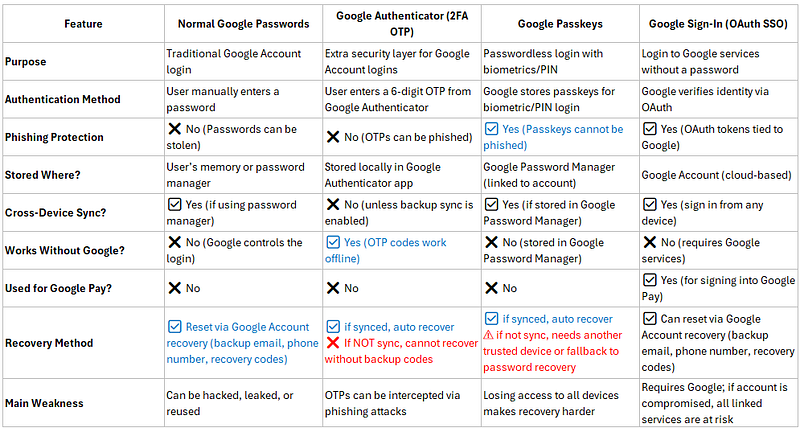
- Google Sign-In (OAuth SSO) is independent but often tied to Google services. If a site allows both Google Sign-In and Passkeys, they can work together.
- Passkeys can work alongside passwords, meaning you can have both a passkey and a password for the same account (but passkeys are safer).
- Passwords and Google Authenticator are separate, but many websites use them together as 2FA (password + OTP code).
- Passkeys remove the need for passwords and Google Authenticator because they provide stronger authentication without the risk of phishing.
Comparison: Google Sign-In vs. Passkeys vs. Passwords vs. Google Authenticator
General Recommendations:
Ensuring the security of your Google Account while maintaining accessible recovery options is crucial. Here’s an overview of various authentication methods and their associated recovery considerations:
1. Normal Google Passwords
- Use a strong, unique password.
- Maintain current recovery options, such as a backup phone number.
2. Google Authenticator (2FA OTP)
- Enable Sync — Open Google Authenticator, look for the top right “cloud icon” to confirm sync is on.

3. Google Passkeys
- Enable Sync — Make sure sync is turned on.
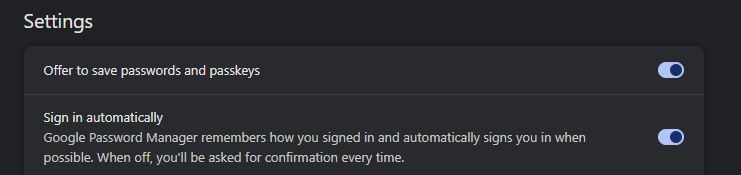
4. Google Sign-In (OAuth SSO)
- **No action needed **as long as you can access your Google Account.
General Recommendations:
- Sync is turned on: Keep more than one device logged into your Google Account & sync is turned on
- Password and SMS Recovery: Ensure you have a strong, memorable password and an associated phone number for SMS-based recovery. This setup allows account access even if authenticator apps or passkeys are inaccessible.